How do i connect an esata port?
Connecting an eSATA port involves a few steps, similar to connecting other external devices, but with some specifics due to eSATA's unique characteristics. Here’s a step-by-step guide:
1. Check for eSATA Ports
On Your Computer: Ensure your computer has an eSATA port. It might be labeled as “eSATA” or simply “SATA.” If your computer doesn’t have an eSATA port, you can add one using an eSATA expansion card or an external eSATA docking station.
2. Get the Right Cable
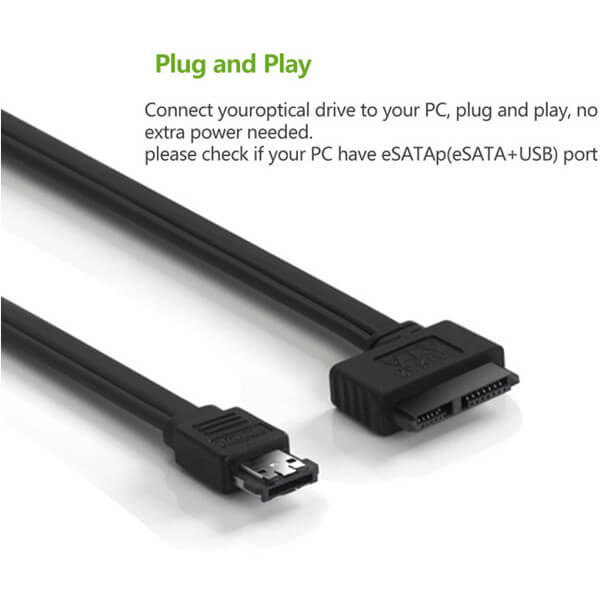
eSATA Cable: You’ll need an eSATA cable. These are specifically designed for external SATA connections and have connectors that fit both the eSATA port on your computer and the eSATA port on your external device.
3. Connect the Cable to the External Device
Attach One End: Plug one end of the eSATA cable into the eSATA port on your external storage device (e.g., an external hard drive or SSD enclosure).
4. Connect the Cable to the Computer
Attach the Other End: Plug the other end of the eSATA cable into the eSATA port on your computer. Ensure the connection is secure and properly seated.
5. Power the External Device
Check Power Supply: Most eSATA external devices require a separate power source. Connect the power adapter to the external device and plug it into an electrical outlet. If your external device has a separate power switch, make sure to turn it on.
6. Turn On the External Device
Power Up: If the external device has a power switch, turn it on. In many cases, the device will be recognized automatically by your computer once it’s powered and connected.
7. Check for Recognition
Operating System: Open your operating system’s file explorer or disk management tool to ensure the external device is recognized. It should show up as a new drive or storage device. If it doesn't appear, you might need to check connections, ensure the device is powered on, or verify that the eSATA port and cable are functioning correctly.
Troubleshooting Tips:
1. Verify Compatibility: Ensure your external device and the eSATA port on your computer support the same version of SATA (e.g., SATA I, II, or III).
2. Update Drivers: Make sure you have the latest drivers and firmware for both your motherboard (or expansion card) and the external device.
3. Check Cable and Ports: Inspect the eSATA cable and ports for any physical damage or debris that could affect the connection.
By following these steps, you should be able to successfully connect an external storage device to your computer using an eSATA port.
Send your message to us:
Post time: Sep-03-2024